 Tersby
What a section is
An expert-mode page is a run of sections one after another: header, first screen, advantages, plans, form, footer. Inside a section are elements and groups of elements (columns, cards).
Ready sections
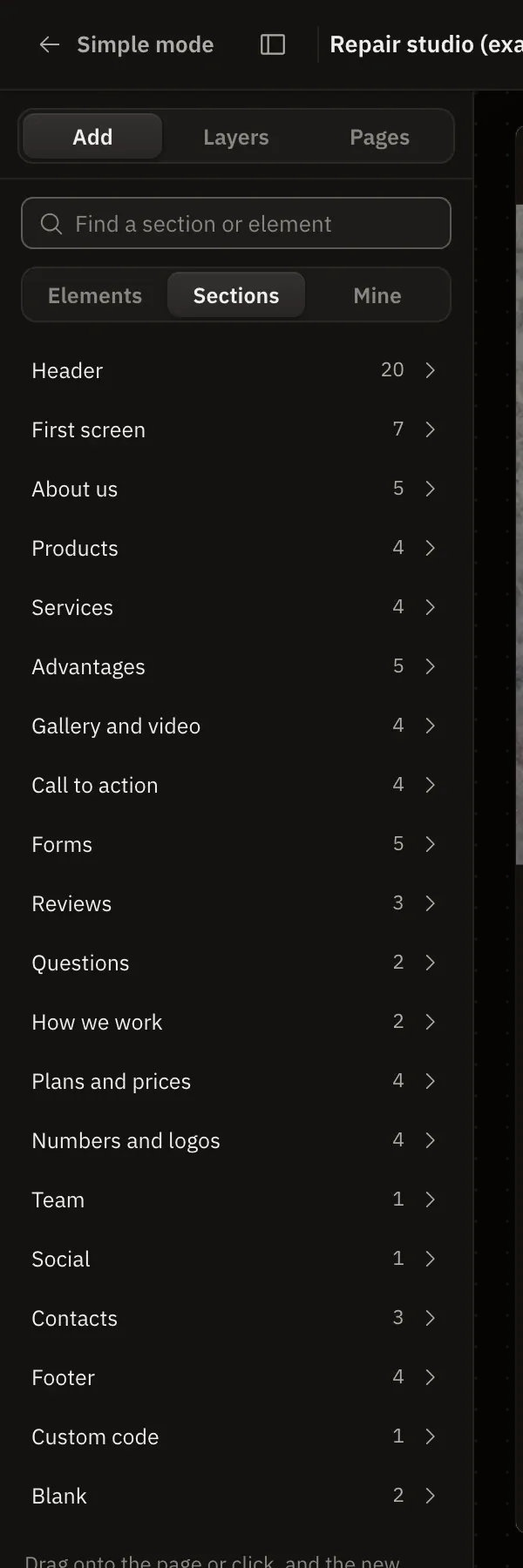
“Add” → «Sections» lists the categories with the number of variants in each:
- Header (about 20 variants: with a phone, a button, messengers, social links, languages, transparent over the first screen, sticky on scroll, dark, with an announcement on top);
- First screen, About us, Products, Services, Advantages, Gallery and video;
- Call to action, Forms, Reviews, Questions, How we work, Plans and prices;
- Numbers and logos, Team, Social, Contacts, Footer, Custom code, Blank.
Each section's card shows its layout. Drag a section onto the canvas where you want it, or press it: it goes after the selected one.
Header and footer on every page
A header from the «Header» category shows on every page of the site by default, a footer at the bottom of every page. You can see it in the section's settings: «On other pages: Top» or «Bottom». Edit the header on one page and it changes everywhere.
- Its own header on a single page. Pick the page and clear the selection on the canvas: the page's settings appear on the right. There you can hide the site's header and footer and put that page's own.
- A transparent header lies over the first screen: «Over the next one: Transparent on top».
- A sticky header stays at the top on scroll: «On scroll: Stays on top».
- On a phone the header stays one line: extras are hidden and the menu goes under a burger button.
Your own sections and the blank section
The «Blank» category gives an empty section: build anything in it from elements. There's also the free section, where elements are placed with the mouse anywhere, like in Tilda. See «Free section».
«My blocks»
A good section can be saved and inserted on any of the company's sites:
- Select the section and press «To my blocks» in its settings on the right.
- Name the block.
- On any site the block is in “Add” → «Mine».
Another way to move a section: ⌘C on one site and ⌘V on another (in the same browser).
Section anchor
A section has an «Anchor» field, for example order. A button with the «To section» action and links like #order scroll the page to it.