 Tersby
What it is and when you need it
Expert mode builds a page from elements and ready-made sections, like a site builder. You see everything on the canvas right away, no programming needed.
It works in two ways:
- On top of a template. The template's blocks stay as they are and are edited in simple mode, while your sections go between them. This way you can add, say, video reviews or a calculator without touching the template.
- Entirely, on the «Blank site» template. The whole page is yours: header, first screen, footer, any sections. Only such sites have several pages with their own design, popups, languages and password-protected pages.
It opens with “Expert mode” in the site editor. A «Blank site» opens in it straight away.
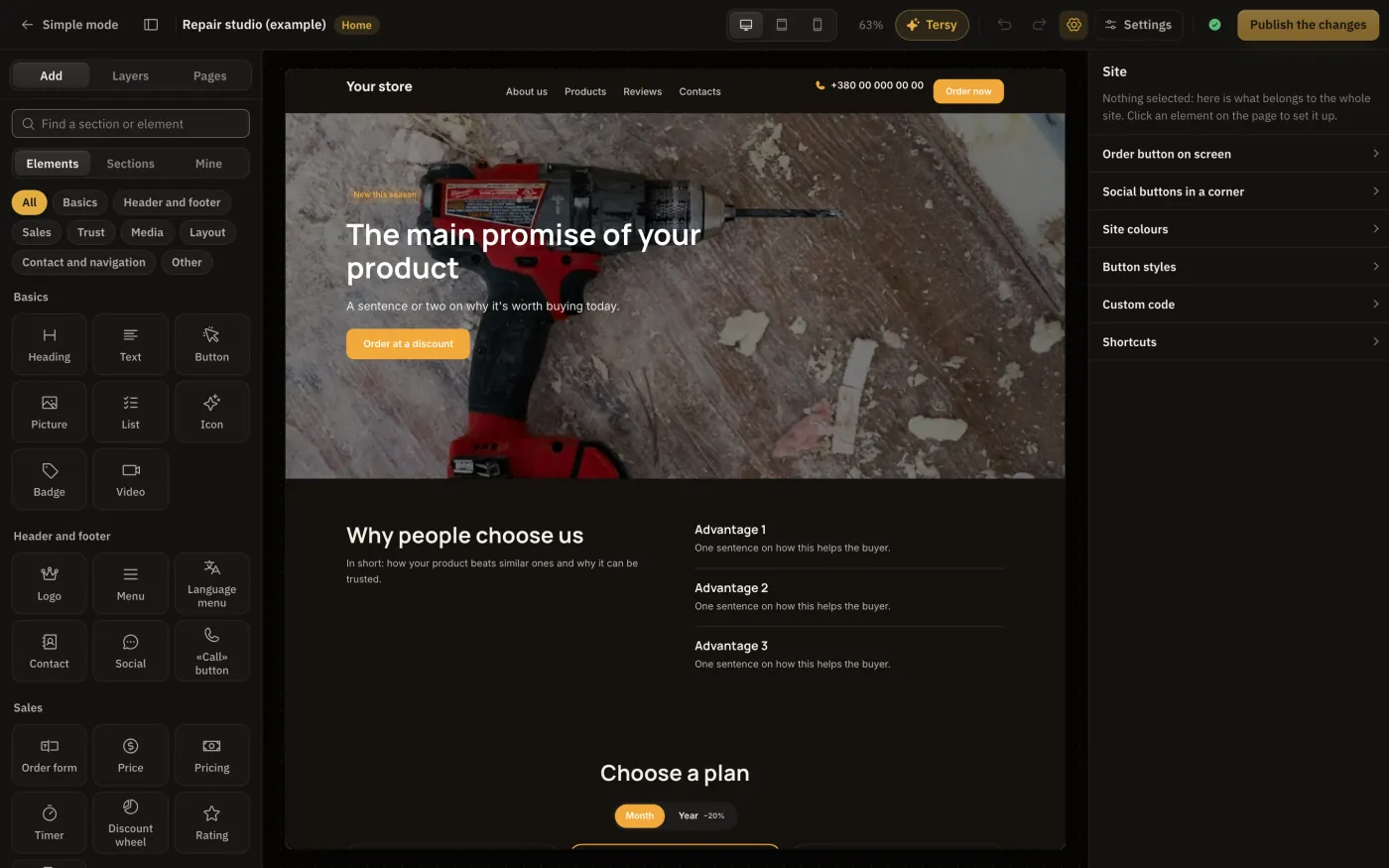
The top bar
- «Simple mode» takes you back to the regular site editor.
- The site's name and a tag saying which page you're editing (home, another page or a popup).
- Desktop, tablet, phone: how the page looks on each device. Edits made on a tablet or phone apply there only. See «Phone and tablet».
- The zoom shows how much the page is scaled down to fit the window.
- “Tersy”: the AI helper. Ask it to add a section, a form or an effect, and it does so on the open site.
- Undo and redo (⌘Z and ⌘⇧Z).
- The gear shows on the right what belongs to the whole site: the order button on screen, social buttons in a corner, site colours, button styles, custom code and the list of shortcuts.
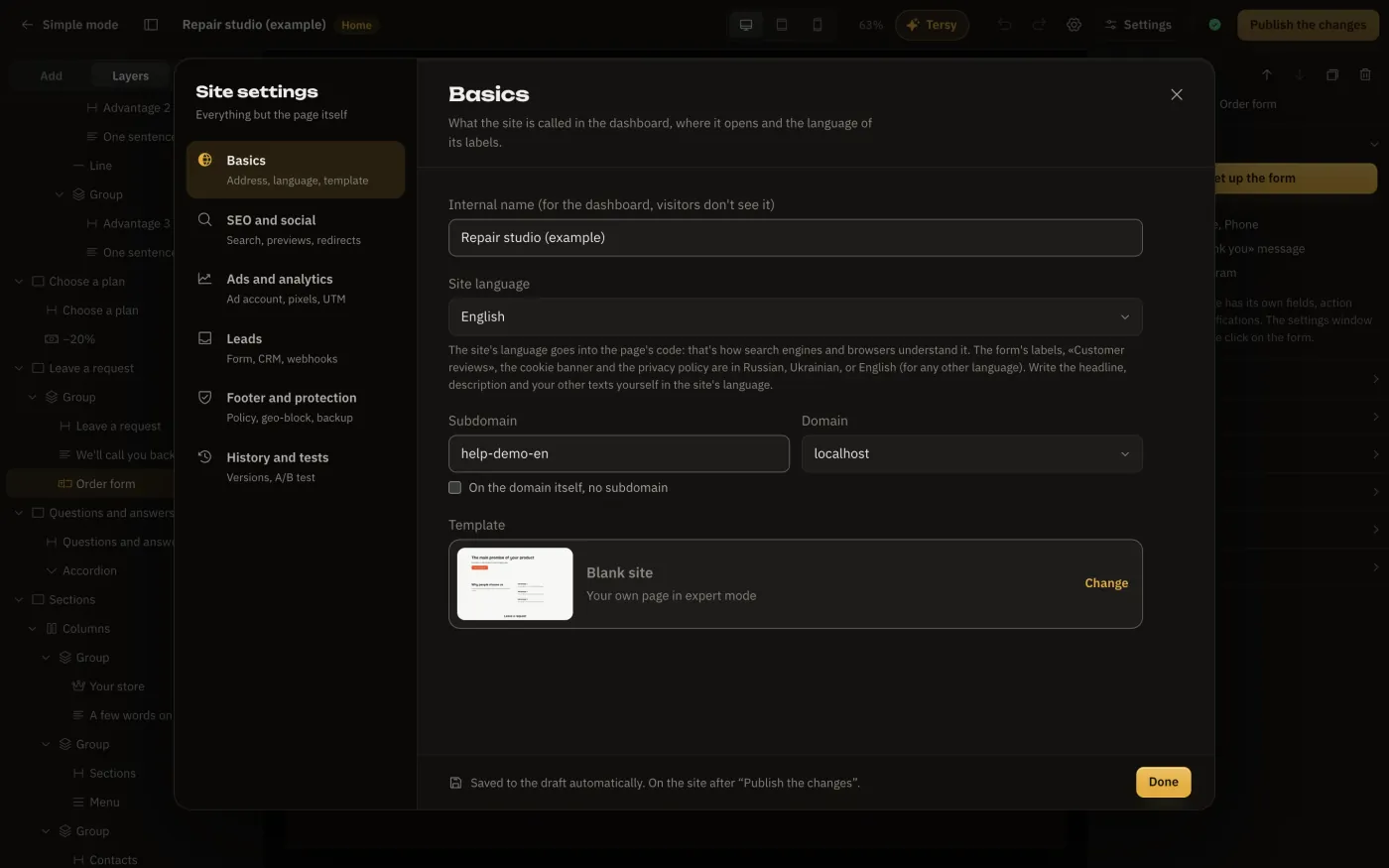
- «Settings» opens the site's settings window: address, language, SEO, pixels, leads, footer, version history.
- The status icon shows whether everything is saved and published, and “Publish the changes” puts your edits live.
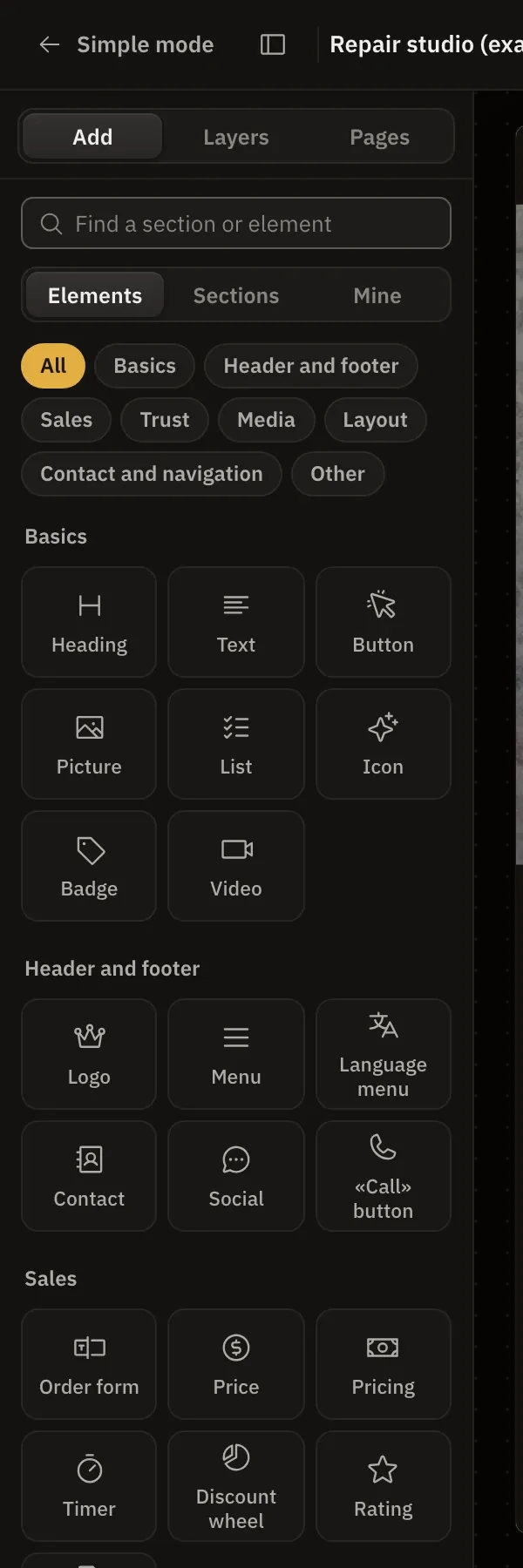
The left panel: add, layers, pages
“Add” has everything you can put on a page:
- Elements: heading, text, button, picture, form, discount wheel and a few dozen more. Above the tiles are filters by purpose: «Basics», «Header and footer», «Sales», «Trust» and others.
- Sections: ready blocks by category (header, first screen, plans, reviews, questions, footer). Each category shows how many variants it has.
- Mine: blocks you saved yourself and can insert on any of the company's sites.
The search at the top finds both elements and sections, even by category name: «header» finds every header.
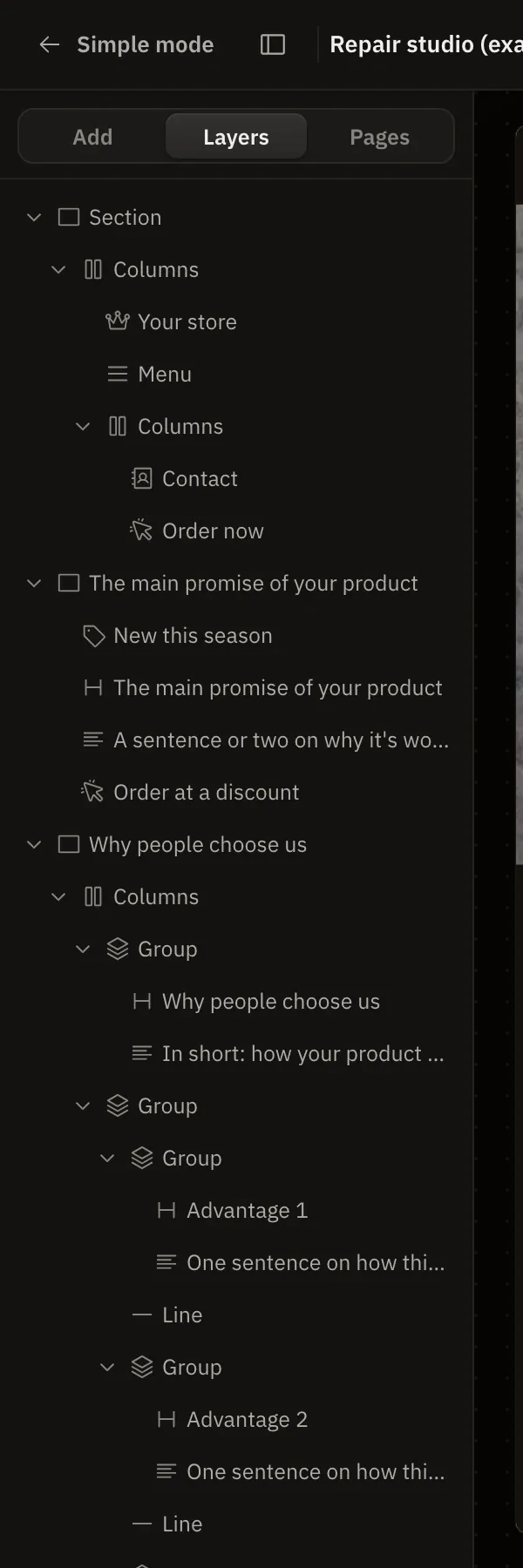
“Layers” shows the page as a tree: sections, groups and the elements inside. Handy for picking a small element or finding a hidden one. Dragging in the tree changes the order.
“Pages”: the site's languages, pages and popups. See «Pages and popups» and «A site in several languages».
The canvas
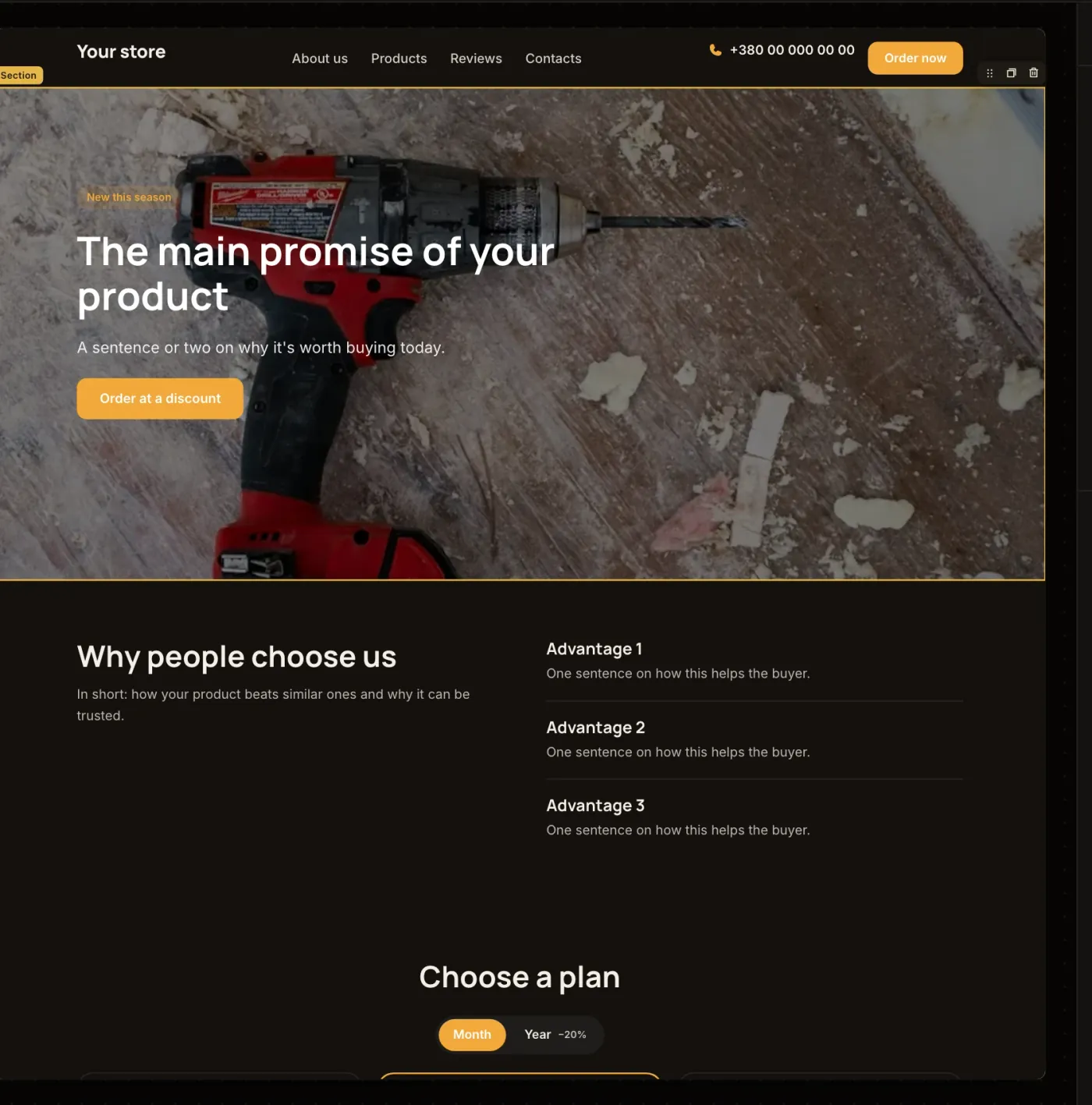
- A click selects an element. A frame with its name appears, with buttons above it: drag, duplicate, delete.
- A double click on text edits it right on the page. Select a word and a bar appears: bold, italics, link.
- Dragging changes the order of elements and sections. A line shows where the element will go.
- The corner handle of a picture, video, gallery or map resizes it. With Shift held, the height changes too.
- Esc clears the selection. Then the right panel shows the page's or the whole site's settings again.
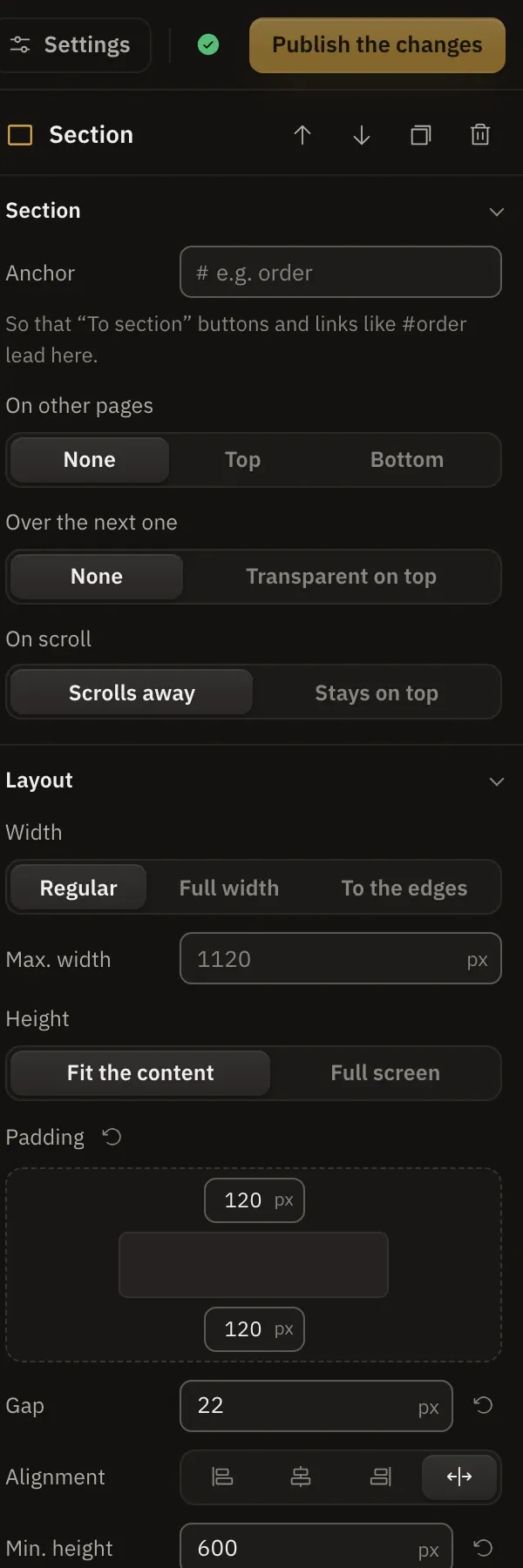
The right panel: settings of what's selected
At the top: the selected element's name, the path to it (for example, «Section → Columns → Logo») and buttons: up, down, duplicate, delete. Then the groups of settings:
- The element's own group: text, picture, link, the button's action, form fields and whatever only it has.
- «Look» and «Layout»: size, width, spacing, gaps, alignment, height.
- «Style»: colour, background, gradient, border, corner radius, shadow, «glass».
- «Animation»: entrance on scroll, a hover effect, a gentle looping motion.
- «Visibility»: hide on desktop, tablet or phone.
- «Show by marks»: who sees the element and which text to show by the ad's tags (UTM and sub1-sub5).
When nothing is selected on the canvas, the right panel shows the current page's settings, and the gear at the top shows the whole site's.
Saving and publishing
Edits are saved to a draft by themselves, there's no «Save» button to look for. Visitors see them after “Publish the changes”. Until you press it, the site shows the previous version.
Every publish saves a version. Any earlier one can be restored in the «Settings» window → «History and tests». See «Draft, publishing and history».
Shortcuts
- ⌘Z and ⌘⇧Z: undo and redo.
- ⌘C and ⌘V: copy and paste an element or section, including between pages and sites.
- ⌘D: duplicate.
- Delete: delete what's selected.
- Esc: clear the selection.
- ⌘J: open Tersy.
On Windows press Ctrl instead of ⌘.