 Tersby
Site pages
A site in expert mode can have several pages: the home page and any others with their own address, for example drill.tersby.app/thanks. How many pages one site can have depends on the plan.
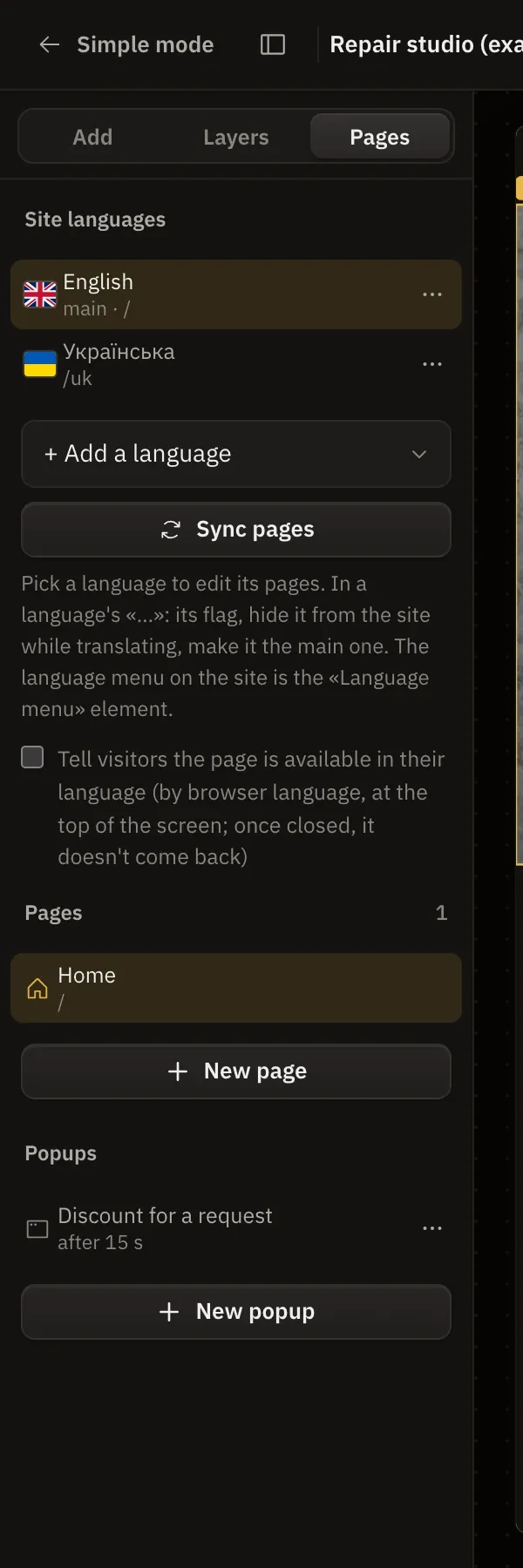
- In expert mode, open “Pages”.
- Click “New page” and choose: blank, “Thank you for your order” or “Page not found” (404).
- On the right, set the name, address, and the title and description for search. The “In search” switch hides the page from search and the sitemap.
The header and footer from the home page can show on every page: a section has the setting “On other pages: top or bottom”.
The “Thank you” page
It shows after the form is sent. In the form settings, choose “After sending: go to a page” and pick the “Thank you” page. It is hidden from search by default.
Your own 404 page
If a visitor opens an address that doesn't exist on the site, they see a neat “Page not found” page in the site's colors and fonts. Want your own: create a “Page not found” (404) page, and that one will show.
Popups
A popup is a window over the page: with a form, a discount, a size chart or anything else.
- In “Pages”, click “New popup”. It opens on the canvas right away, and you build it like a normal section.
- Choose when it opens: after a few seconds, after scrolling part of the page, when the visitor is about to leave (on desktop), or only from a button.
- Set how often it shows (once, once per visit, always), on which devices, its width and its place on the screen.
To open a popup from a button, give the button the “Open a popup” action. A form can also open a popup after it is sent. A button with the “Close this window” action closes the popup it sits in.
Ready-made popups
«New popup» offers ready ones: a discount for a lead, «Wait!» when leaving the page, «We'll call back in 5 minutes» (from a button), newsletter signup, a deal with a timer, a discount wheel, «Are you 18?» and an announcement in the corner. Each already has its words and its rule for showing; just adjust them.